

How to make substitutions in FPL
A guide to making substitutions in FPL - featuring a guide on how to make changes to your team on both desktop and the Official FPL app.


How do substitutions work in FPL?
We answer these questions below as part of our FPL Training Academy series, covering all the basics of the game.
Our How to Play FPLpage covers everything you need to know, with guides for complete beginners and managers who want to gain an edge over the competition and win their mini-leagues.
For everything else, including our tips on best players and expert team reveals, see our Ultimate Guide to FPL – there’s plenty of free information but for access to our best stuff and incredible toolbox, you’ll have to become a Hub member.
What are substitutions in FPL?
In Fantasy Premier League (FPL), fantasy managers pick a squad of 15 players.
But in any given gameweek, only 11 of those players are eligible to start.
This means four players will start on the bench. They will not be eligible to score points unless one of the starting 11 do not play any part in the gameweek.
How do you make substitutions in FPL on desktop?
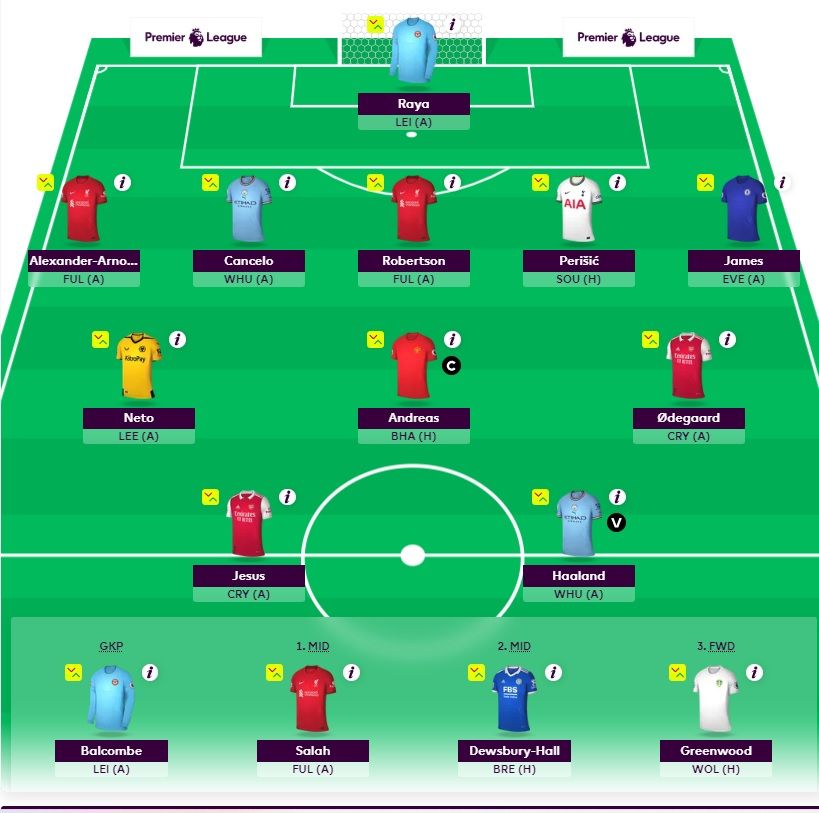
In this example, we are selecting our Gameweek 1 side, so we have navigated to the ‘Pick Team’ tab.
This enables us to make alterations to our side.
We want to switch Andreas Pereira for Mohamed Salah. To do so we need to click on either of these players.
This will bring up the following box:

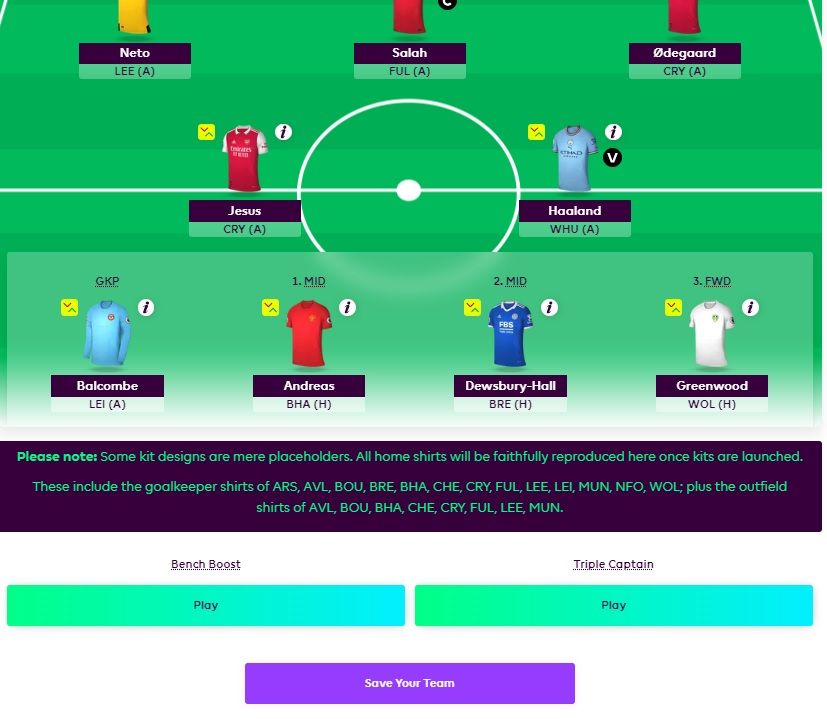
By clicking ‘Switch’, the players eligible to be substituted will be highlighted. When clicking on Pereira, we get the same box, only with the Brazilian’s name. Clicking ‘switch’ completes the transfer.
In order to finalise the change, we must click ‘Save Your Team’ button below our FPL squad. Otherwise, any changes will be lost.
This applies to any changes you make to your FPL captain and vice-captain.
How do you make substitutions in FPL on mobile?
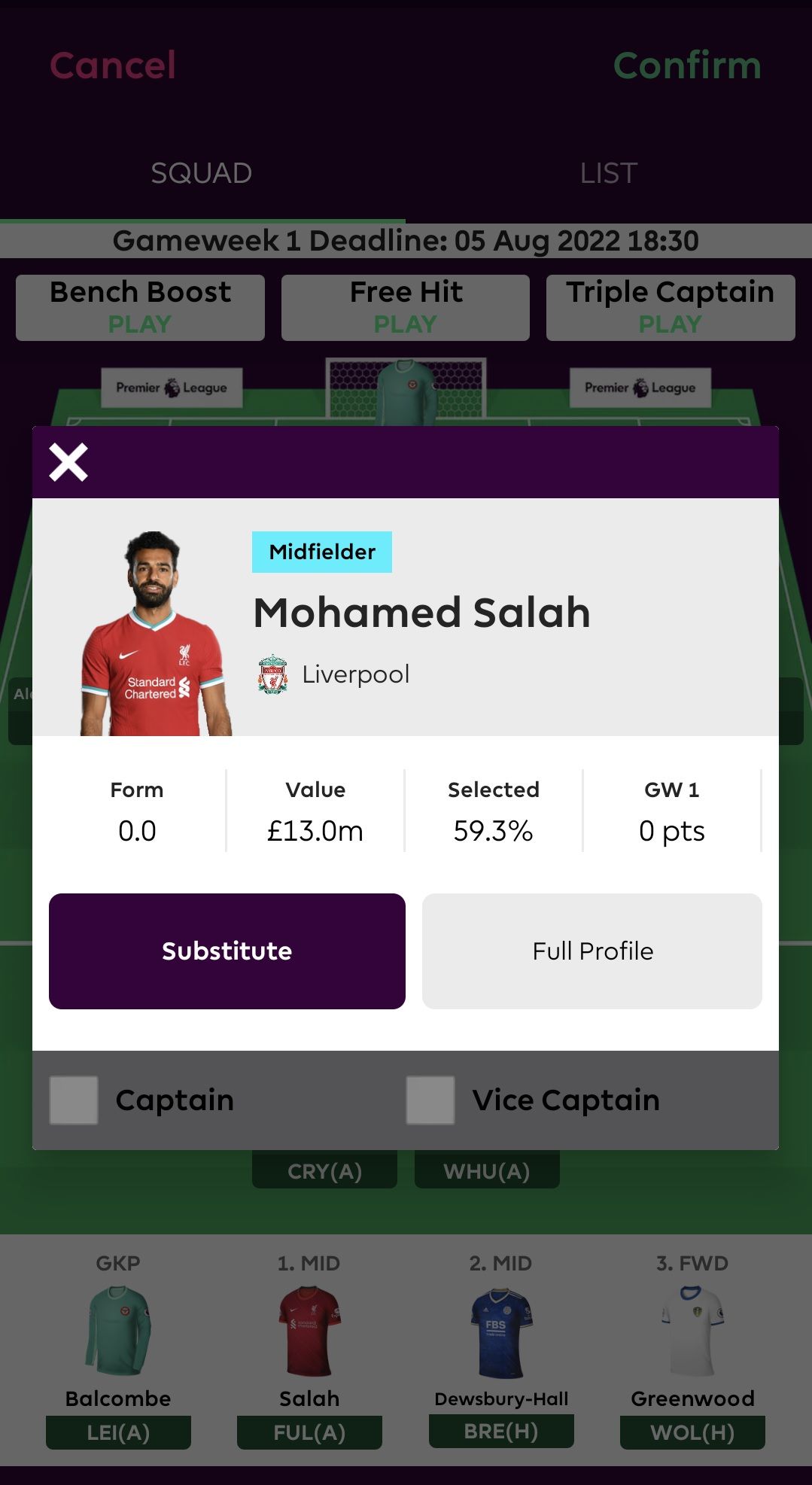
Using the FPL official app, the process is very similar.
Instead of a ‘Switch’ box, when clicking on the player to substitute, managers will see the player’s profile box.
By clicking ‘Substitute’ and then selecting the player to substitute in or out, the change will appear on the screen.
Now, instead of clicking ‘Save Your Team’, options to ‘Confirm’ or ‘Cancel’ will appear at the top of the screen. Clicking ‘Confirm’ will save any changes made.
Check out our fantasy football ultimate guides
Our Ultimate Guide to FPL has everything you could ever need to guide you through each gameweek. Regularly updated, it includes all our FPL content in one handy place – from team reveals from some of the best FPL managers in the game to tips on the best players and much more.
We also have ultimate guides for Dream Team and Telegraph Fantasy Football, which are also home to tips and regular articles from experts in these formats.